Contacts & Groups
The Agent Console helps you find contacts, view their details, and message or call them.
Contact search
Enter at least three characters in the search field and select Filter. Results update automatically. Use filters such as department or location to narrow the results. You can also use filters on their own, without entering a search term.
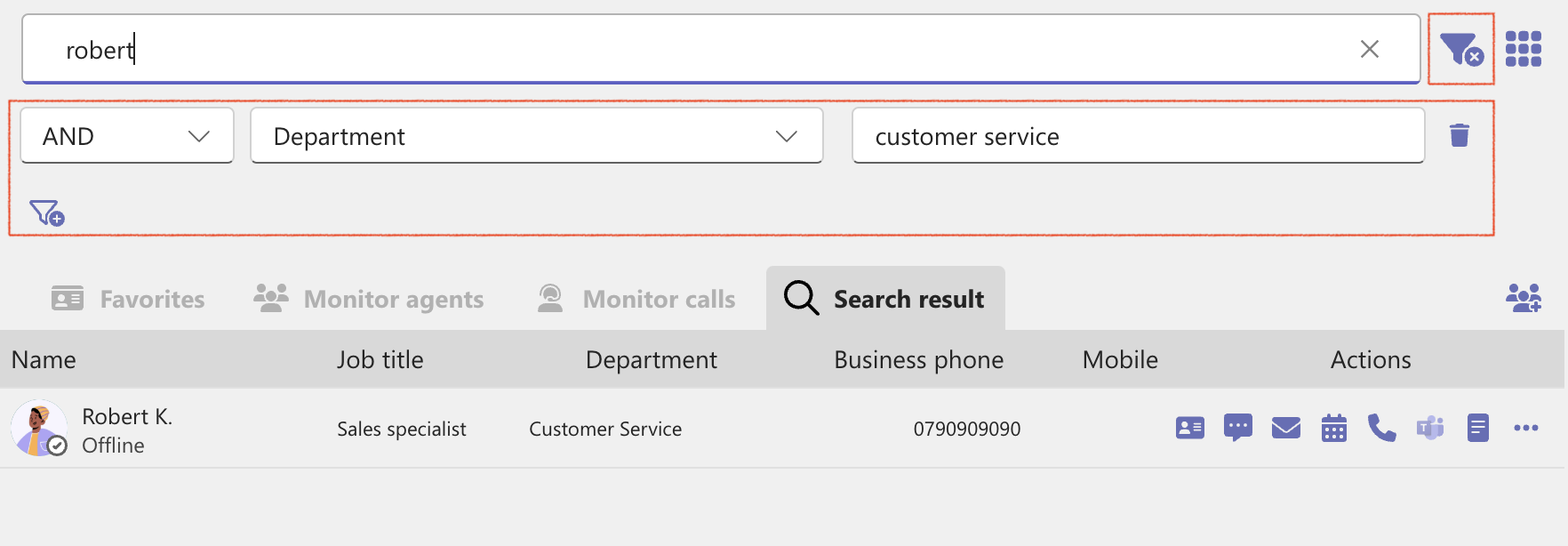
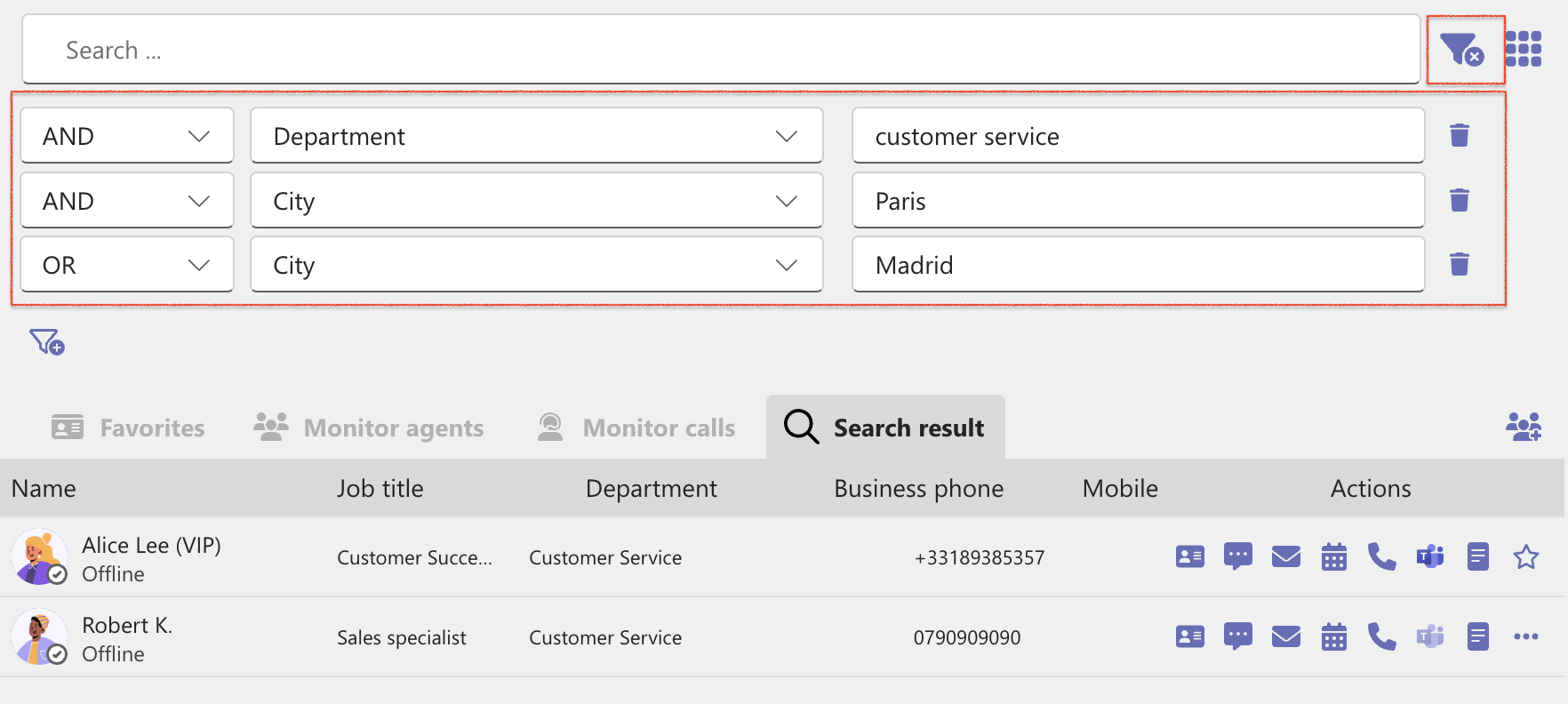
Search results can include a contact’s photo, Teams presence, name, job title, department, business and mobile phone numbers, and available actions. The search also includes Outlook contacts and internal shared contacts.

Contact action buttons
The actions available depend on the contact type.
View contact details
View contact details stored in your organization’s directory.
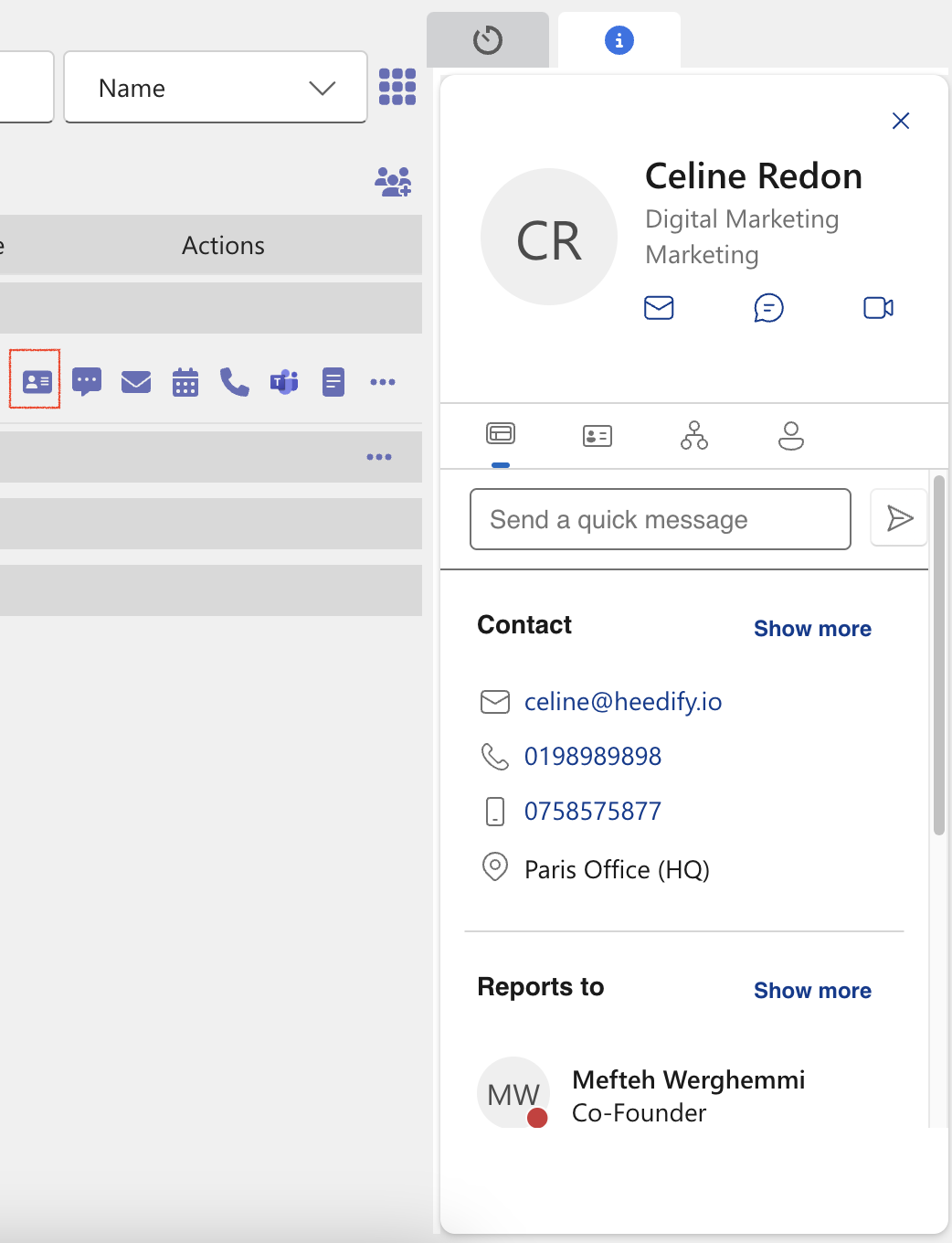
Send a message
Send a message to share information with the contact.
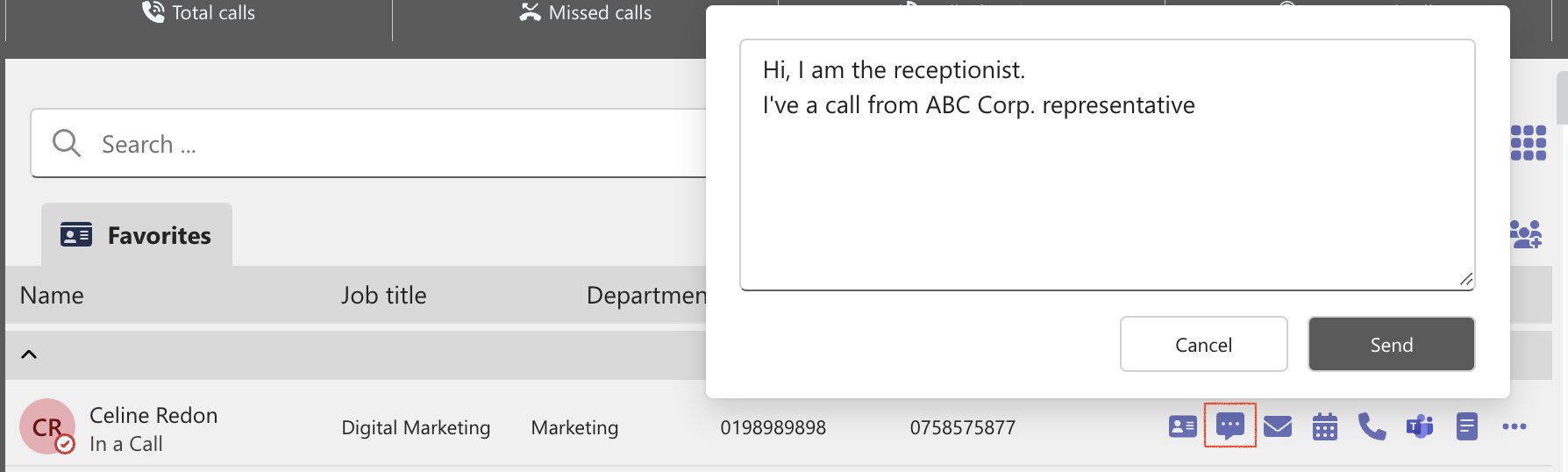
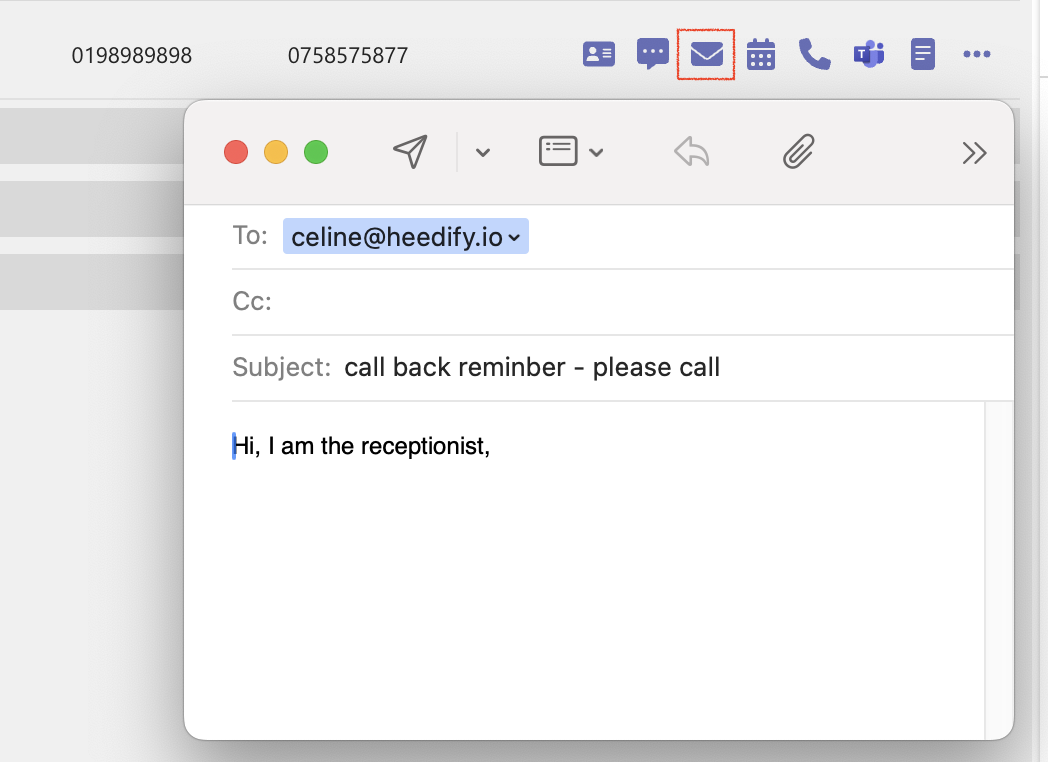
Send an email
Start a pre-addressed email to the contact.
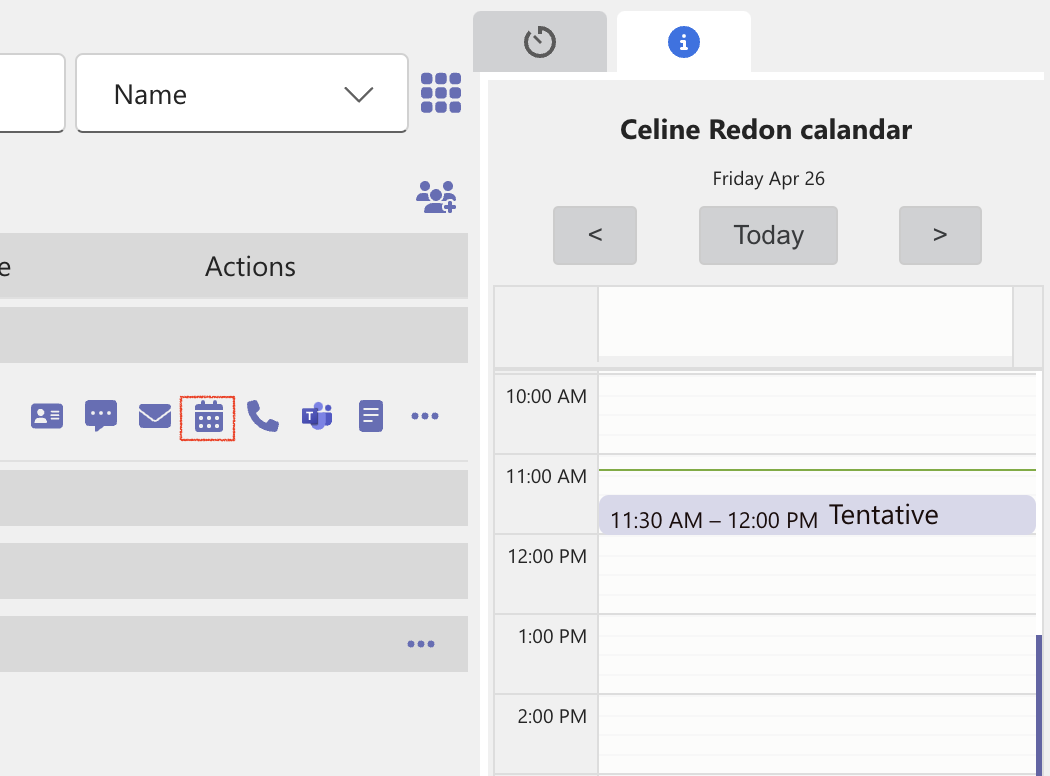
View the contact’s calendar
Open the contact’s Outlook calendar.
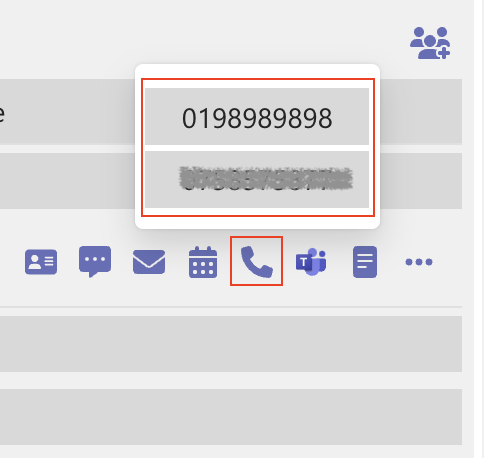
Make a phone call
Select a phone number to call. Calling permissions are inherited from your organization’s Teams settings.
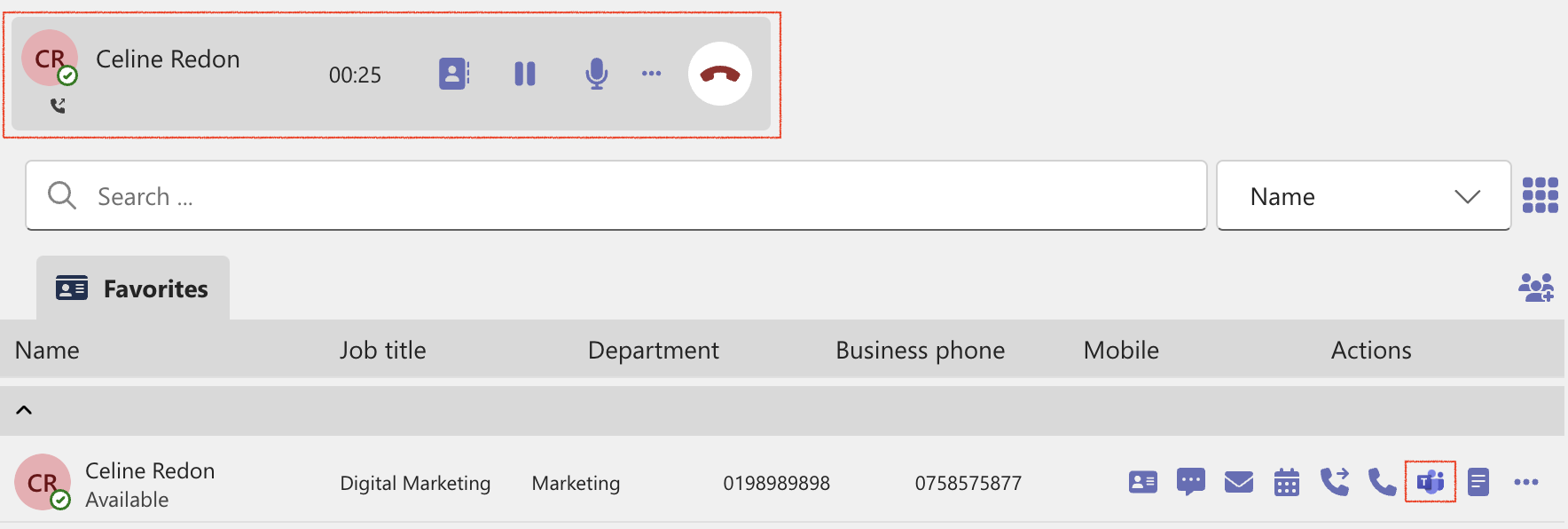
Make a Teams call
Start an audio call with the contact in Teams.
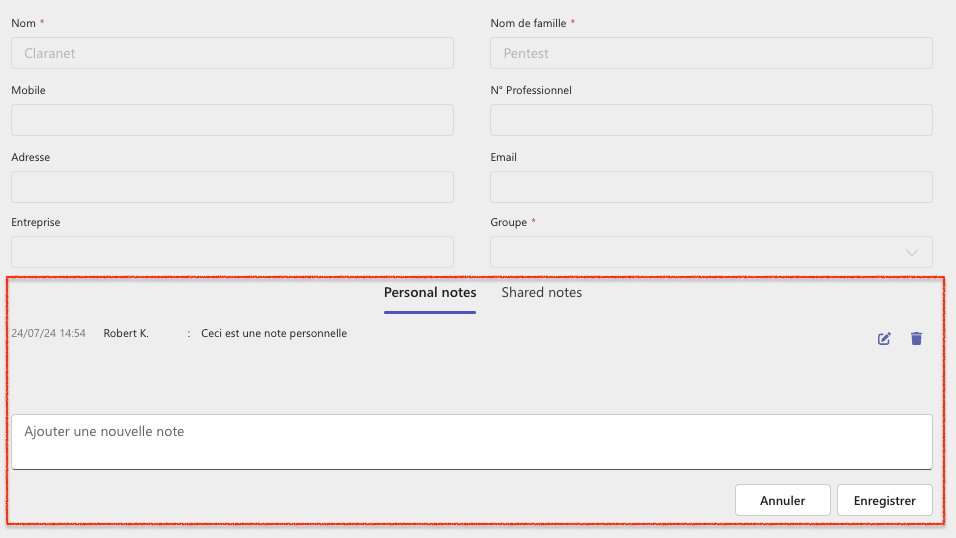
Write a note
Personal notes are available for organization-directory contacts marked as favorites. Shared notes are available for external and favorite contacts. Notes can be shared with other agents when the contact belongs to a shared group.

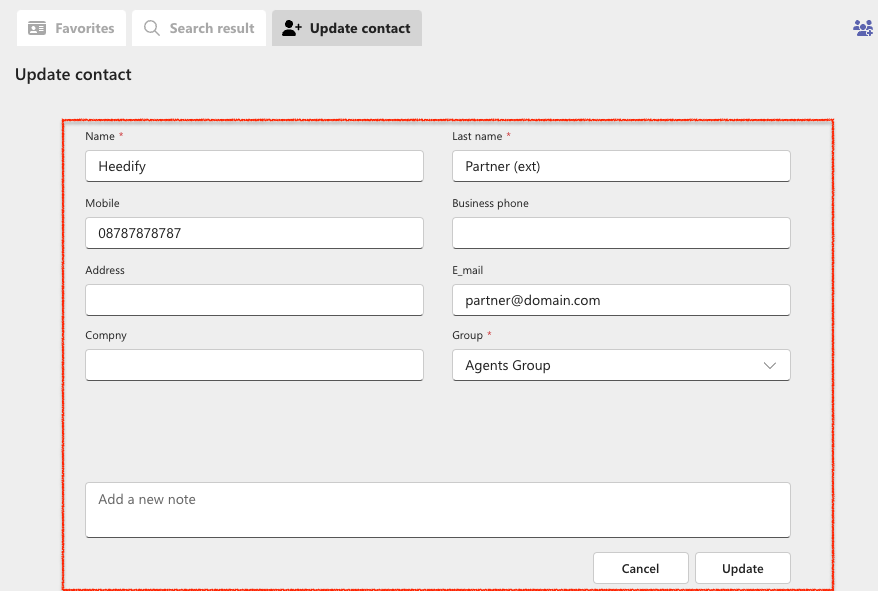
Update an external contact
You can edit an external contact’s details.
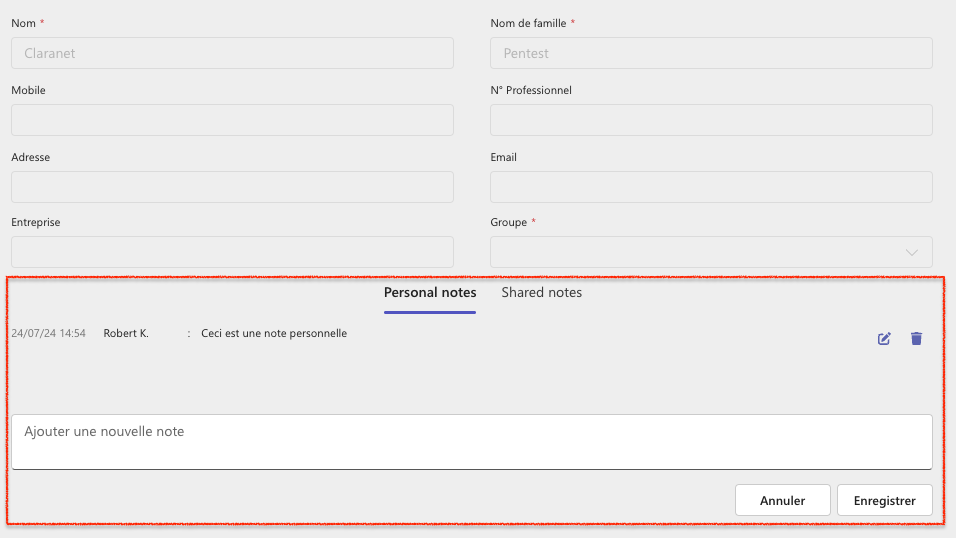
Add a contact to a group
Open the contact’s More menu and choose a shared group. Contacts can only be moved to shared groups.
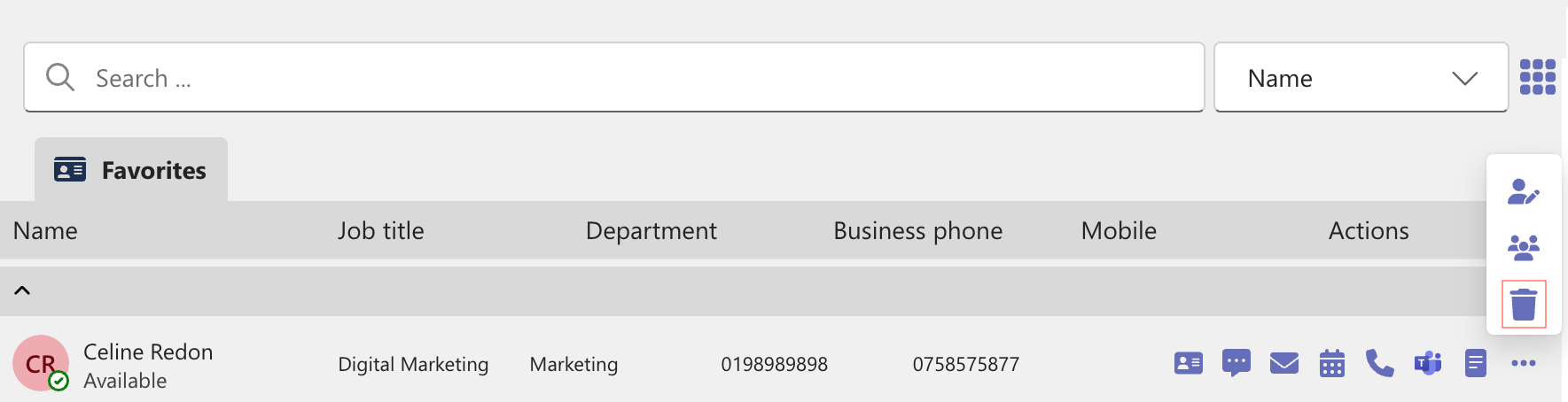
Remove a contact
Open the contact’s More menu and select Remove.
Favorite contacts
Select the star beside a contact to add it to Favorites.
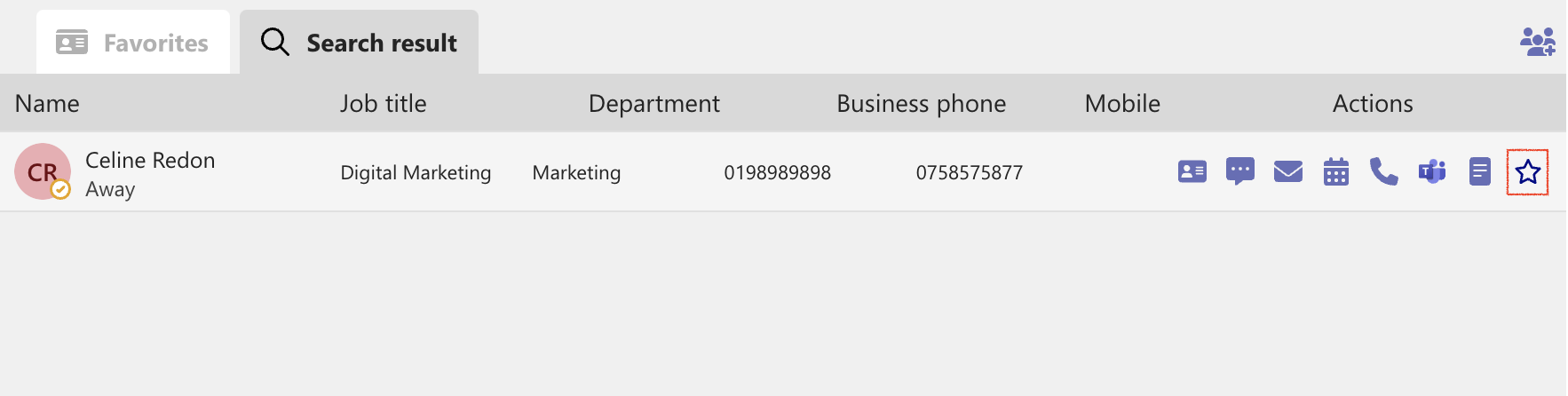
The contact then appears in the Favorites list.

To remove a contact from Favorites, open its More menu and select Remove.

External contacts
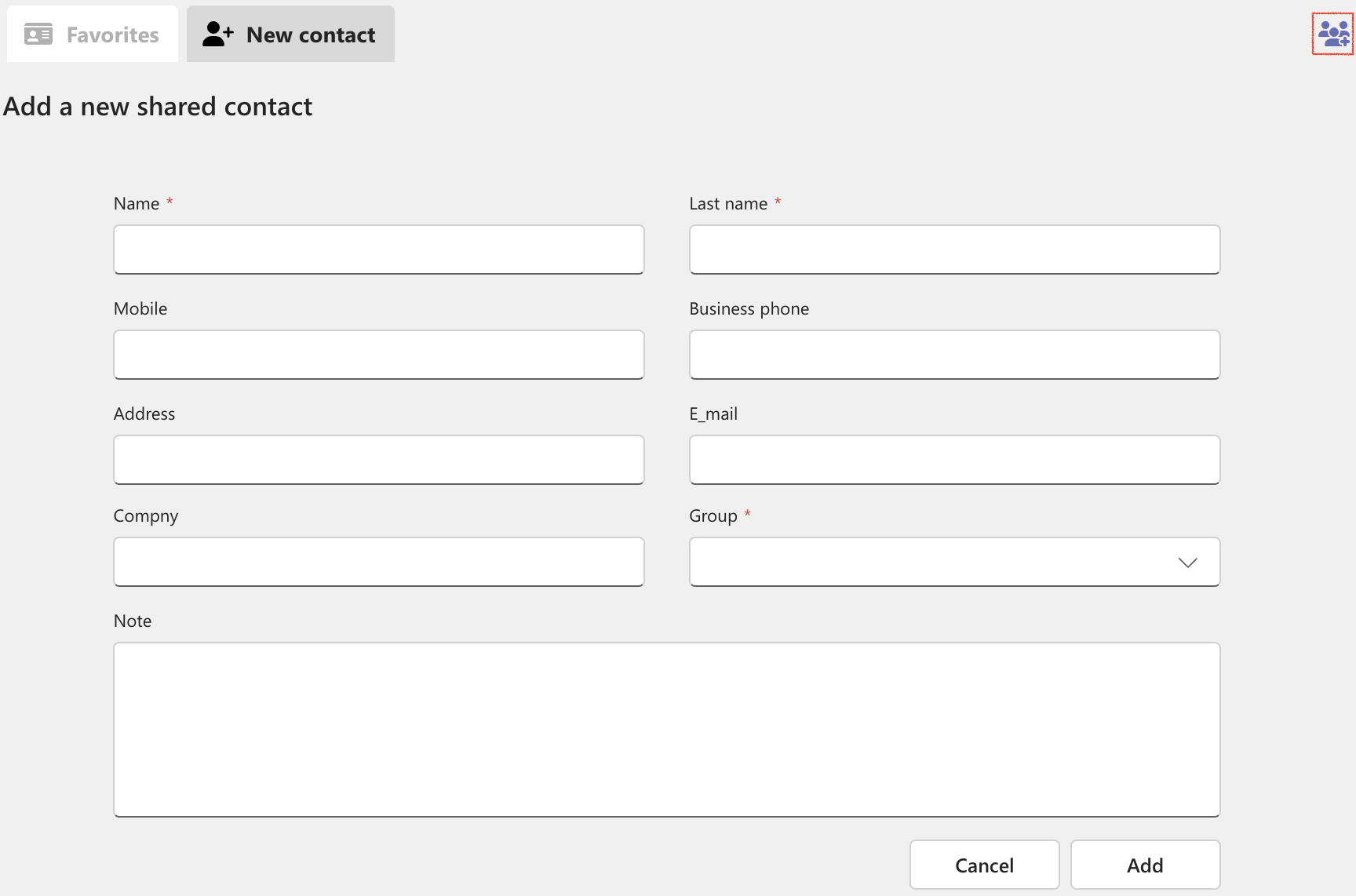
To add an external shared contact, select Add New, then New external contact (shared). Enter the contact details, choose a group, and select Add. You can update the contact’s details later.
Personal groups
A personal group helps you organize your own contacts. Select New group, enter a name, and select Add.

Shared groups
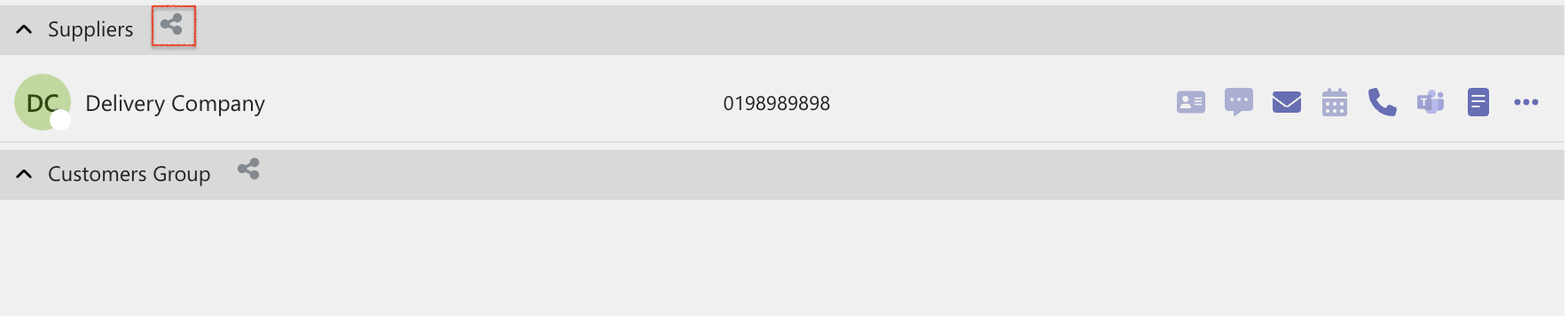
Administrators create shared contact groups in the Heedify Admin Portal. The share icon identifies a shared group. You can add contacts to shared groups.
Works with: Microsoft Teams, Teams Phone, Outlook, Microsoft Entra ID.