Answering calls in the Microsoft Teams client
Heedify supports answering contact center calls in the Microsoft Teams client, integrated with Teams Phone: the call rings in Teams like any Teams call, and the call context configured by your administrator appears in the Teams call panel. Agents answer in Teams for one of two reasons:
- Their licence: with CX Essentials and CX Elevate, calls are handled only in the Microsoft Teams client.
- Their preference: some agents simply prefer to answer and manage calls in the Teams client they already use every day.
In both cases, answer and manage the call in Teams. The Agent Console does not carry the audio of these calls and does not display their context.
Answer and manage calls
- Keep Microsoft Teams open and signed in with your work account.
- When a call arrives, answer it in Teams.
- Use Teams call controls to manage the conversation.
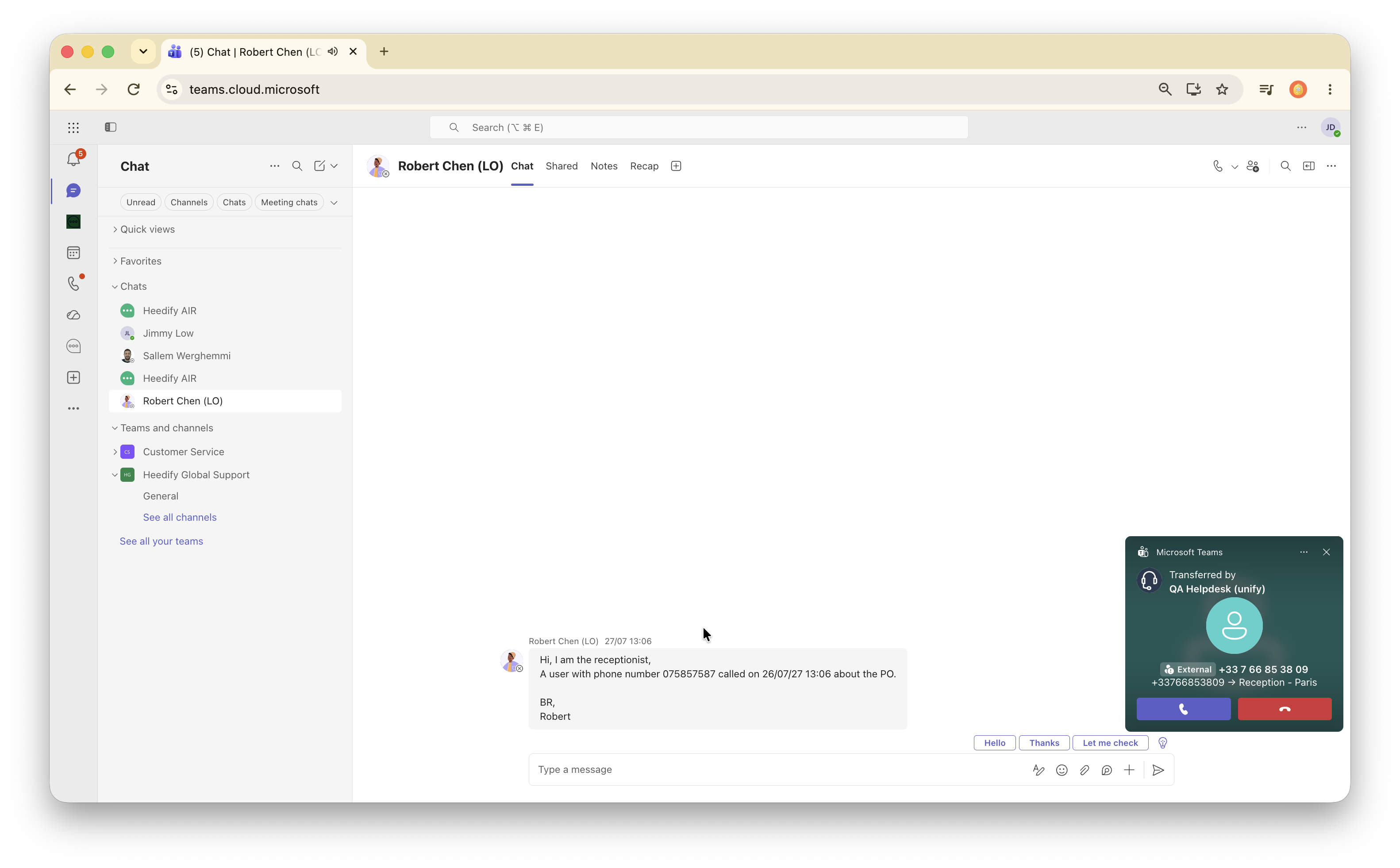
Call details in Teams
If your administrator enables call context for the call flow, the incoming Teams notification can show the caller name and destination. After you answer, open Context in the Teams call to view configured details, such as a CRM link, call flow, queue, and interaction history.
These details depend on the call flow. They may include the flow, queue, time spent waiting, call duration, or the caller’s IVR selection. They appear in Teams, not in the Agent Console.
For setup instructions and field descriptions, see the administrator guide’s Agent context section.
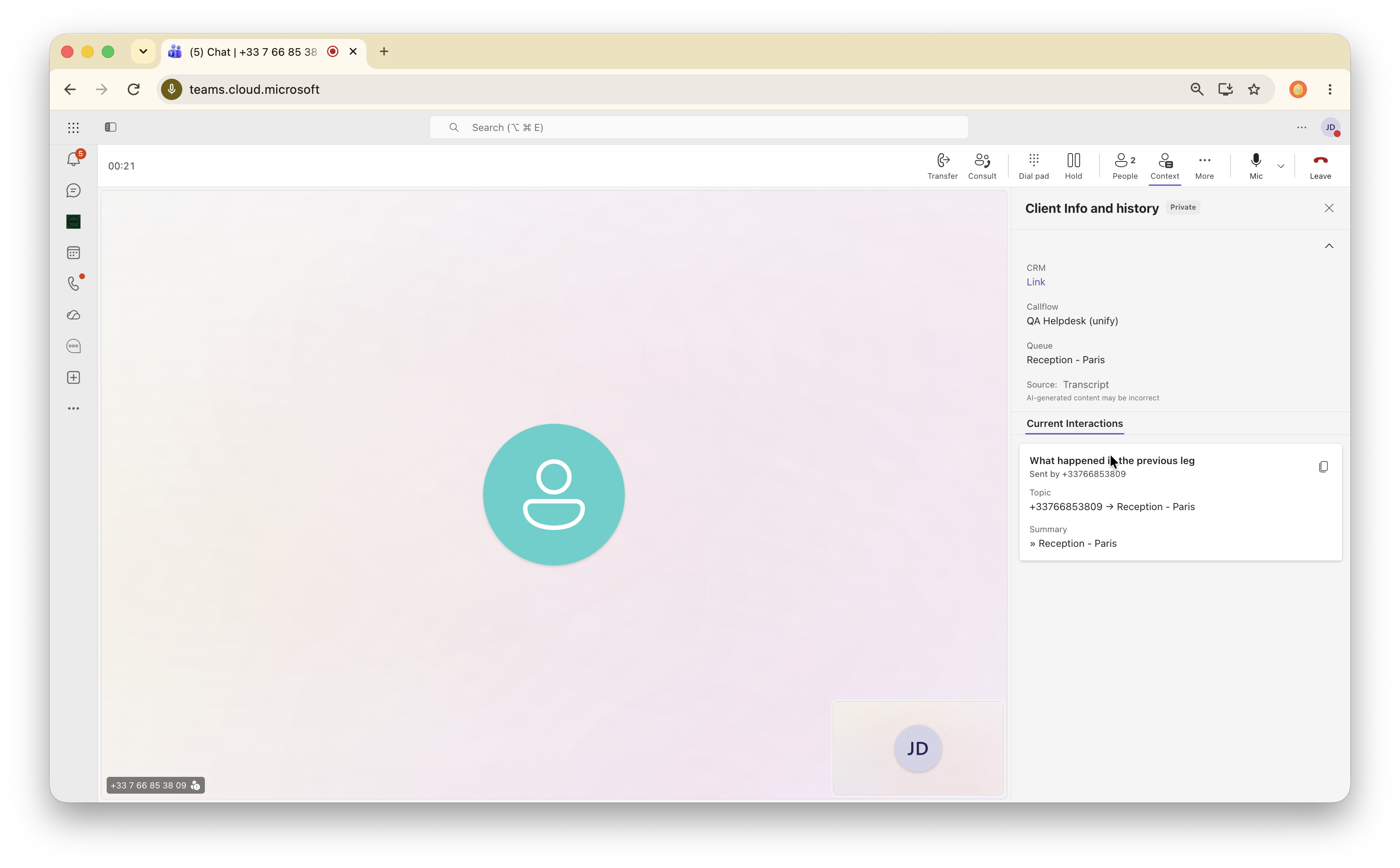
These instructions apply to calls answered in the Teams client. To answer calls in the Agent Console (CX Attendant and CX Experience), see Call handling.
Works with: Microsoft Teams, Heedify Agent Console.