Call handling
Heedify supports agent call handling and pending callback monitoring in the Agent Console, integrated with Microsoft Teams and Teams Phone. Agents can review callbacks from their queues, including the promised time and queue position.
Receive the call
To accept an incoming call, select Accept in the incoming-call pop-up. The call then appears in the active calls zone.
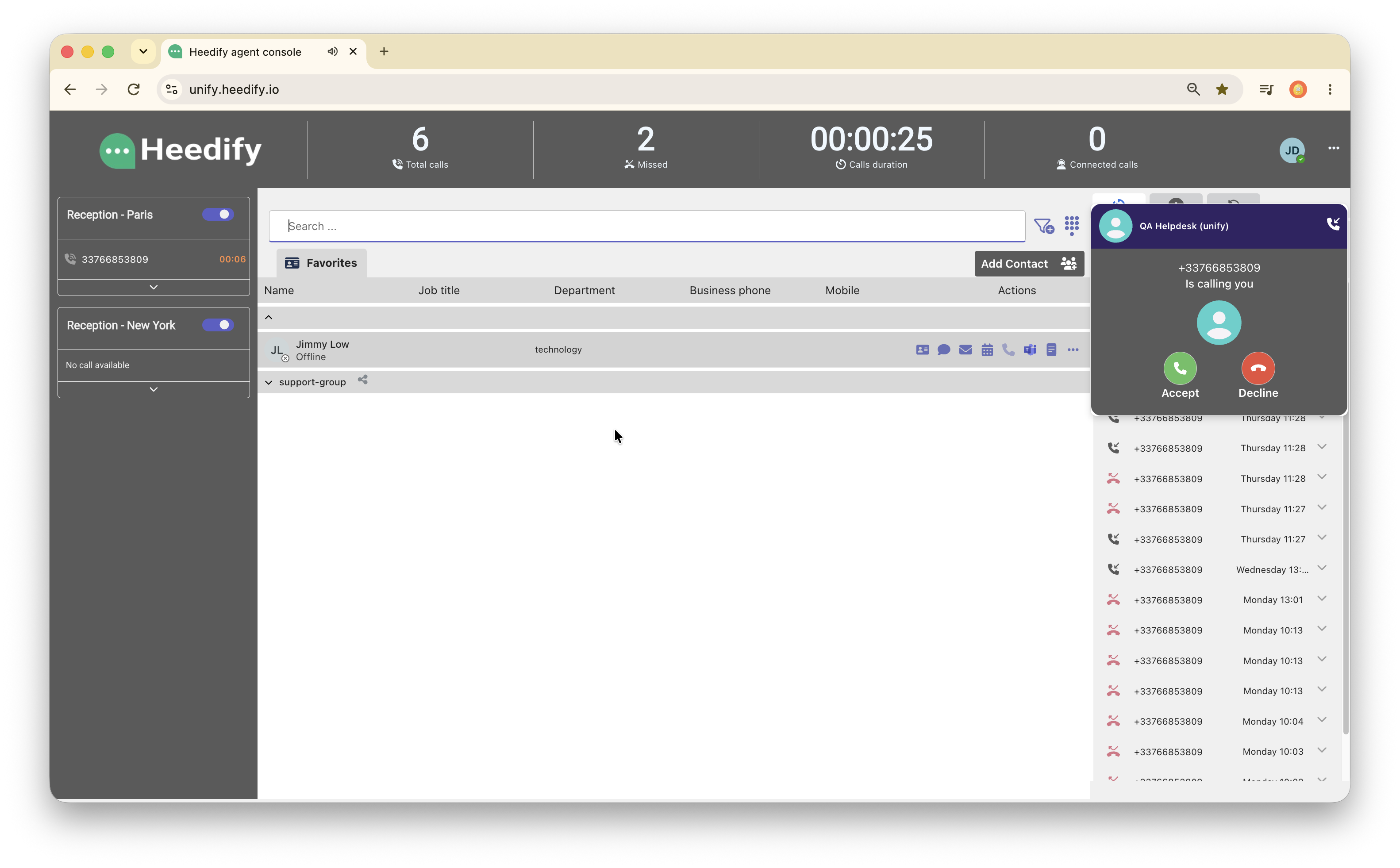
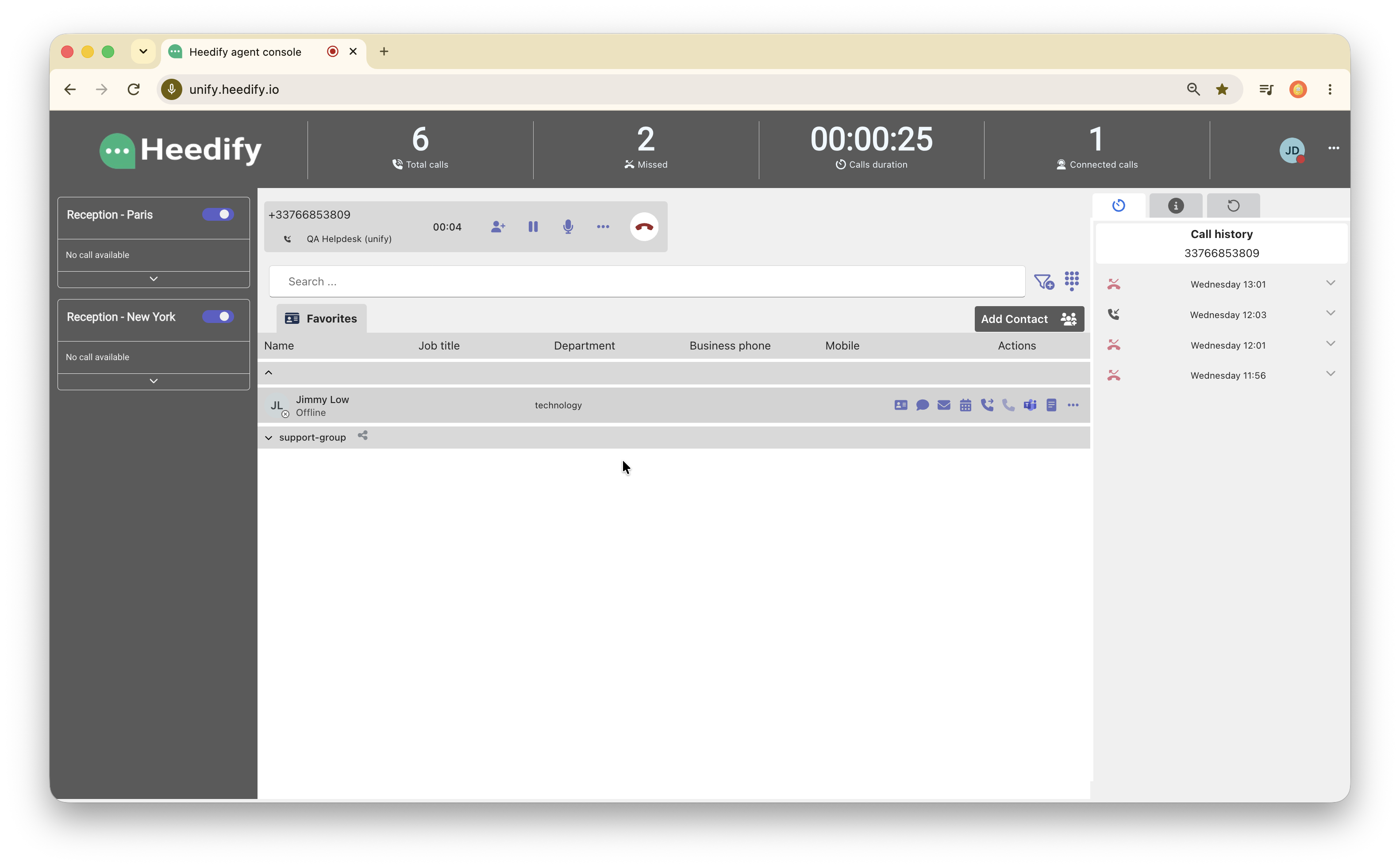
If the caller’s number is associated with a contact, the contact’s display name appears instead of the number.
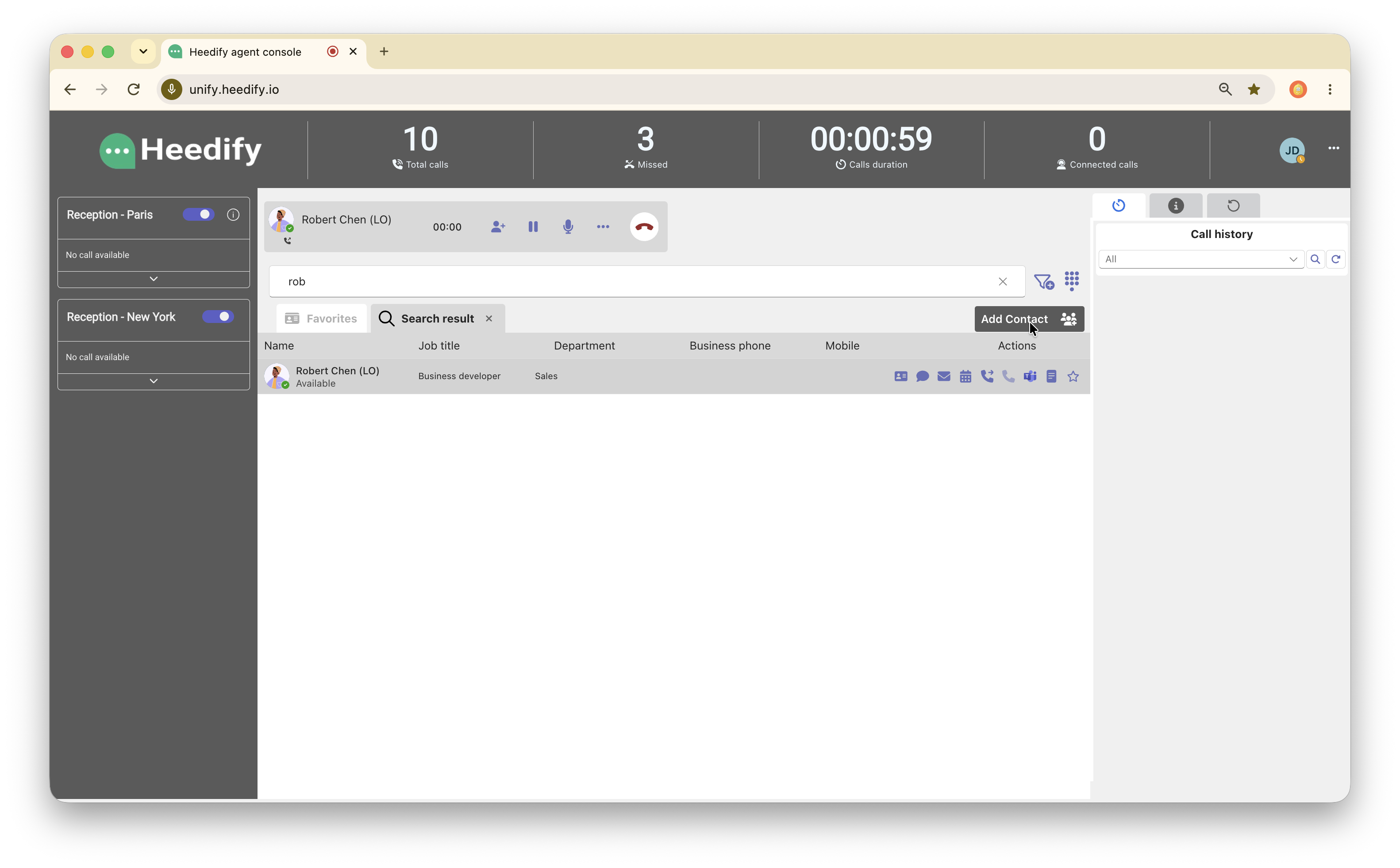
Active Call options
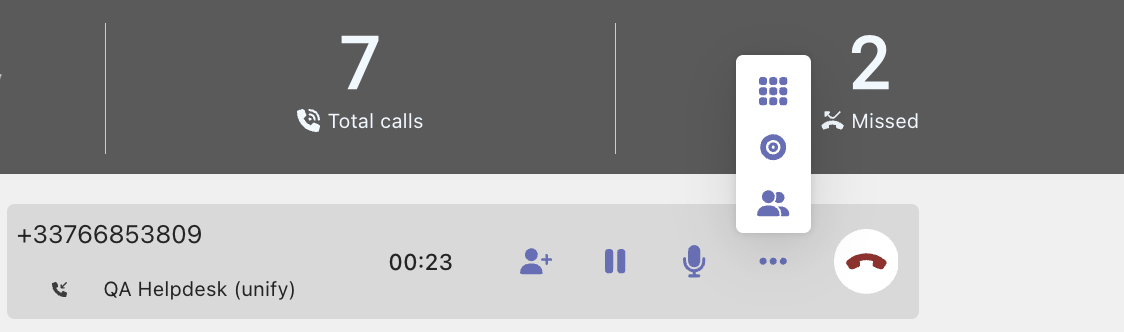
During a call, you can use the call controls to manage the interaction. Use the action icons to:
| Action | What it does |
|---|---|
| Add participant + | Add the caller as an external contact. |
| Pause or resume | Pause or resume the call. |
| Mute or unmute | Mute or unmute your microphone. |
| View participants | View participants on the call. |
| Open dial pad | Open the dial pad to enter DTMF digits. |
| Start or stop recording | Start or stop call recording, if recording is enabled for your organization. |
Call transfer
You can transfer a connected call in one of these ways:
- Blind transfer
- Consultative transfer
Blind transfer
Blind transfer sends a connected call to another agent, department, or external contact without consulting the recipient first.
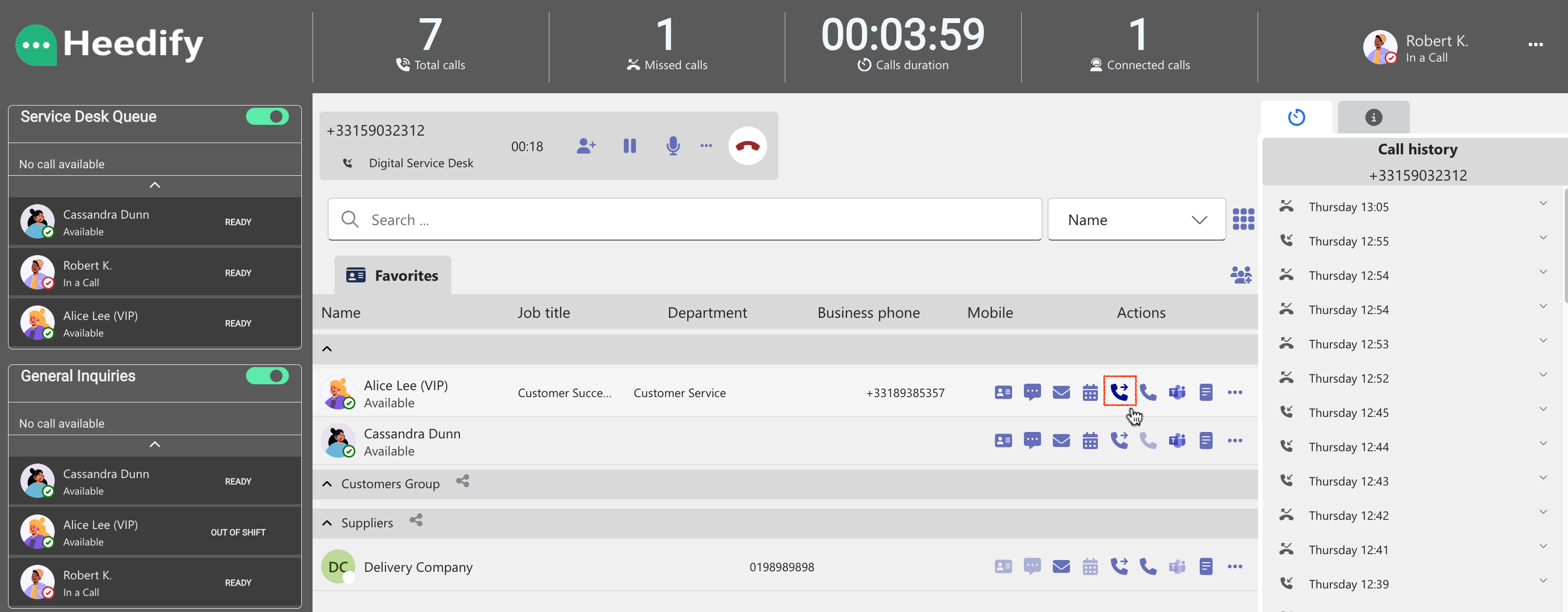
Drag and drop the active call onto the recipient’s entry.
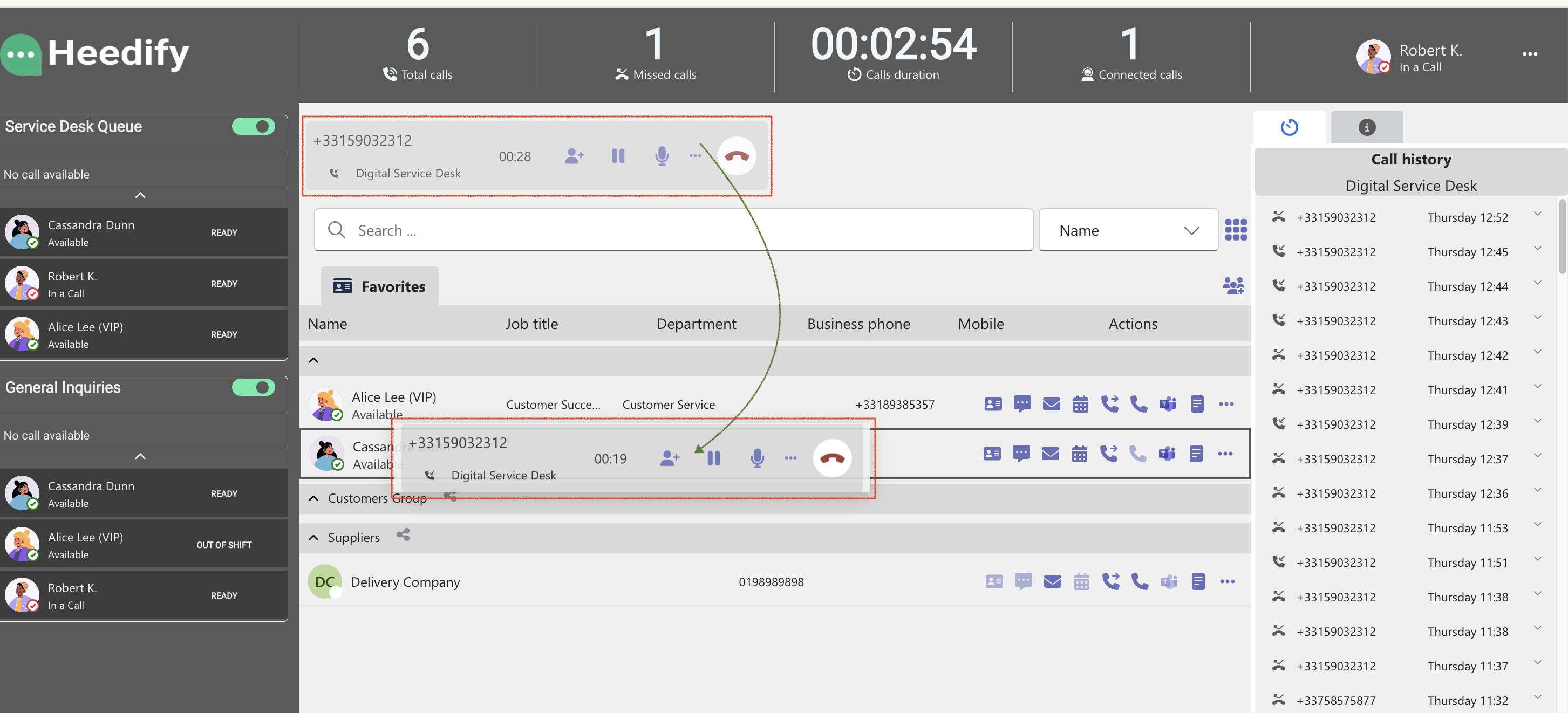
The transferred call card displays the caller and the agent who transferred it.

You can also select the transfer button in the contact’s Actions bar after the call is connected.
Consultative transfer
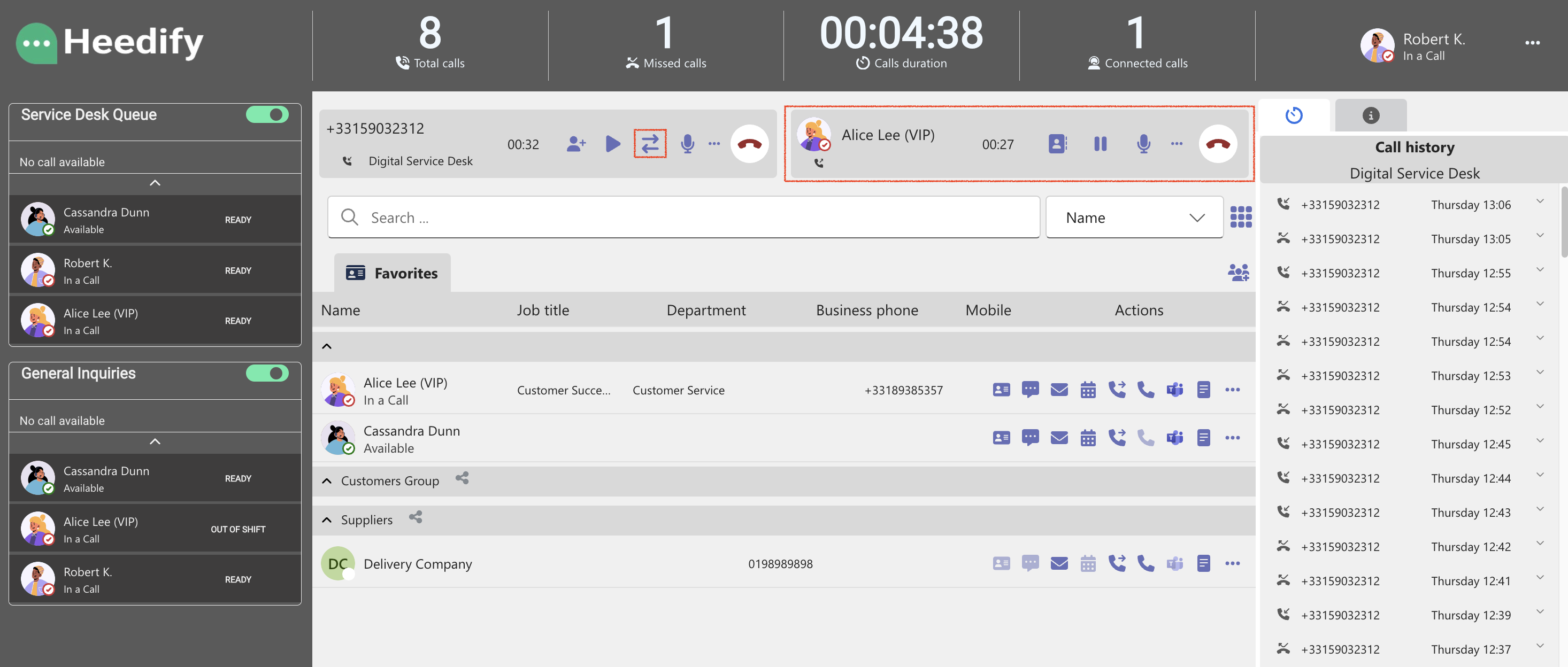
Consultative transfer, also called attended transfer, lets you speak with the recipient before completing the transfer. To start, select the double-arrow transfer button in the call controls.
Requeue a call
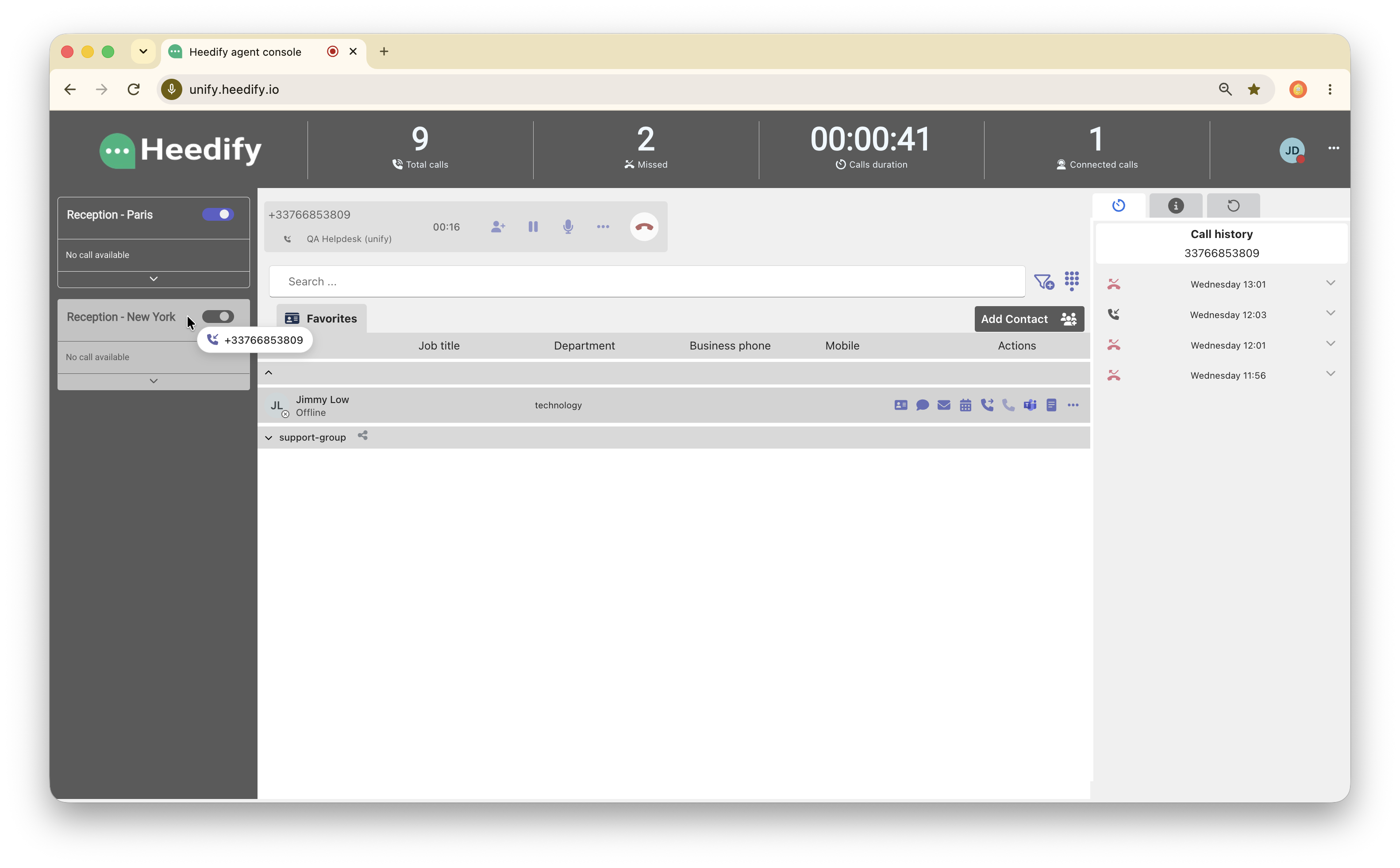
Requeue a call when it needs another department or group, when you cannot assist the caller, or when calls need to be redistributed. Drag and drop the active call onto the desired queue.
Pending callbacks
Select the callback icon in the right-hand information panel to open Pending callbacks. This view appears when at least one queue assigned to you has callbacks enabled and lists pending callbacks from those queues.
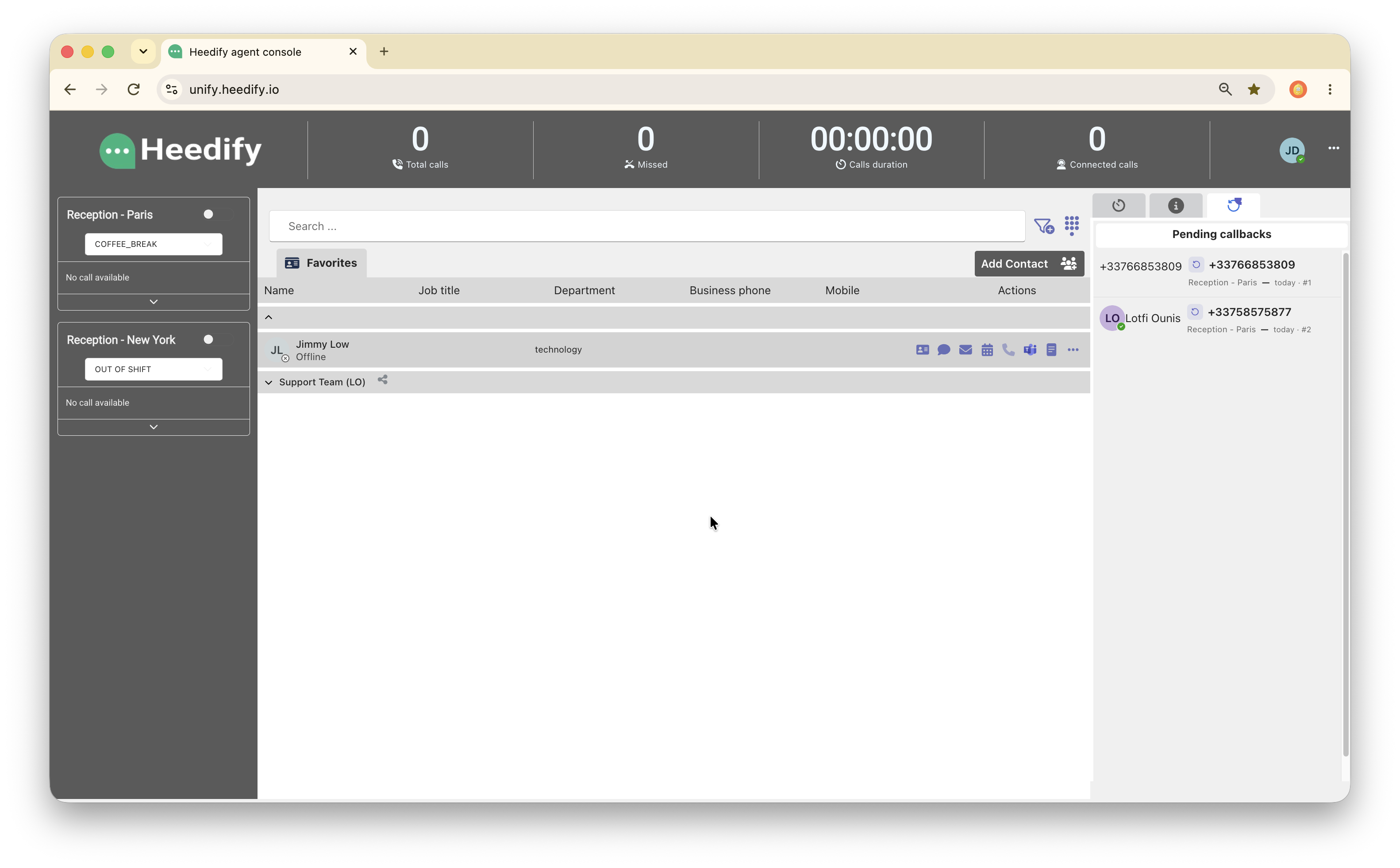
Callbacks are ordered by promised time, earliest first. Each row shows the caller’s number, queue, promised time, whether the callback is due today or later, and its position in the callback queue. When applicable, a row also shows the number of attempts and an at risk or VIP marker.
The list refreshes automatically every 30 seconds. Select Show more to load additional callbacks. If there are no pending callbacks, the panel shows No pending callback. If callbacks are not enabled on any of your queues, it shows Callback is not enabled on your queues.
Receiving a callback
When a callback reaches you, it arrives as an incoming call in Microsoft Teams. Answer it as you would any other call.
Make a call
You can place calls directly from the Agent Console using Call or Teams Call. These are peer-to-peer (P2P) calls.
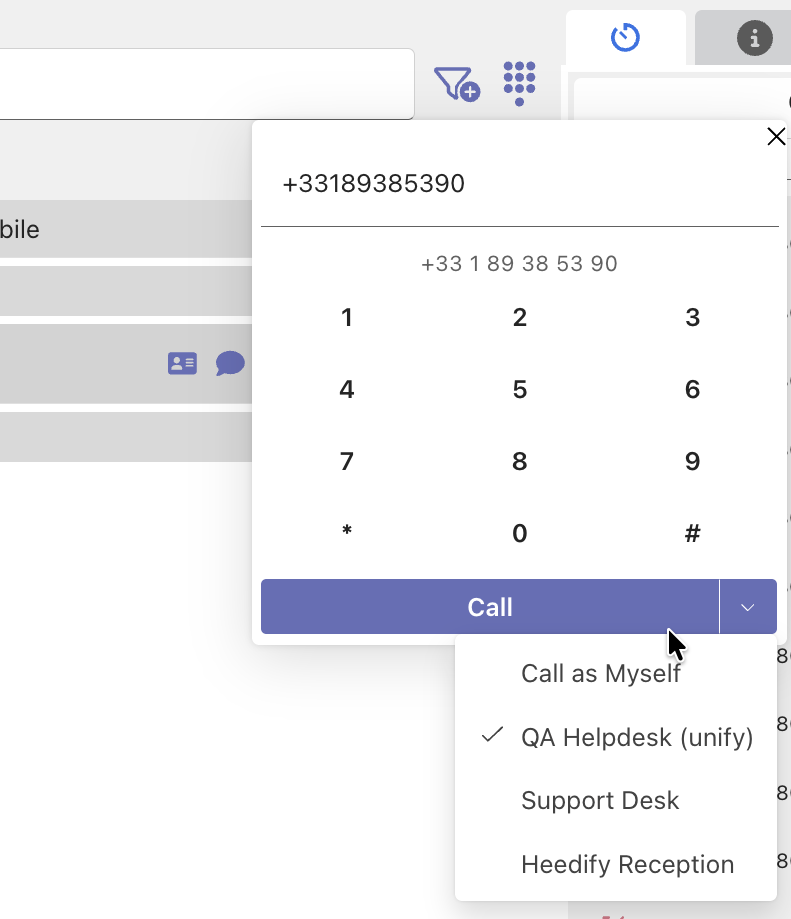
Call on behalf of an organization line
To call on behalf of an organization line, open the arrow beside Call and select the line. Leave Call as Myself selected to call as yourself. Select Call to place the call.
Works with: Microsoft Teams, Teams Phone.