Overview
Heedify is a Microsoft Teams-native contact center providing call flow management, queue routing, agent provisioning, real-time and historical analytics, recording with transcription, and CRM integration via webhooks, integrated with Microsoft Teams, Microsoft 365 and Microsoft Graph — administered through portal.heedify.io. The Heedify Admin Portal is where a customer administrator configures every part of their contact-centre tenant: entities, groups, agents, queues, call and chat flows, media, analytics, recording and customer data.
Accessing the portal
- Go to portal.heedify.io
- Sign in with your Microsoft 365 account
First-time use requires tenant admin consent. See Grant consent for the full consent list.
Portal layout
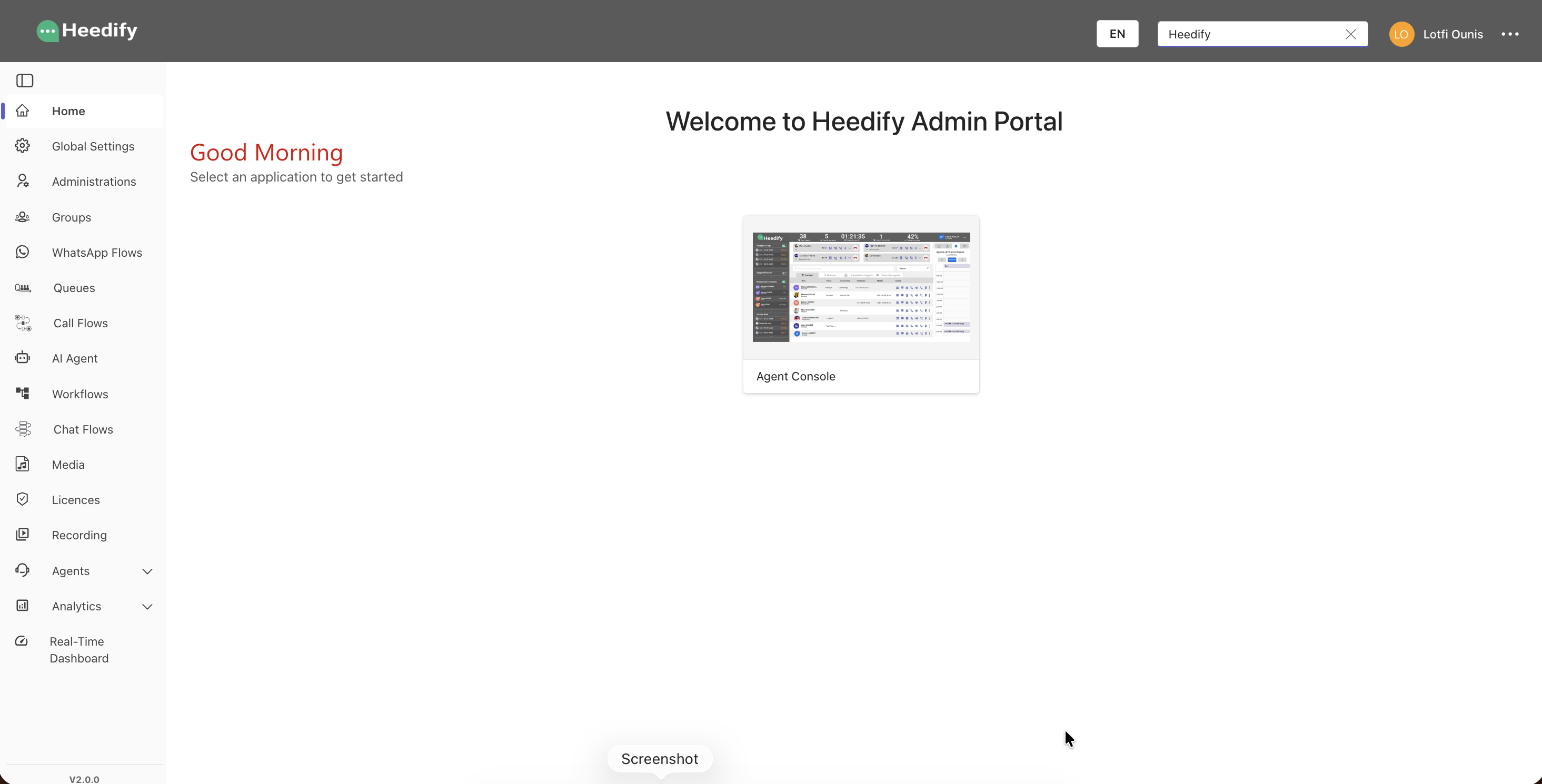
- Header (top) — Heedify logo, language switcher (En / Fr), partner-tenant dropdown and user menu.
- Sidebar (left) — navigation between modules. A module link appears only if you have at least one permission on it (see Sidebar visibility).
- Main area — the currently open module.
Header: language and partner-tenant switcher
- Language — click the EN / FR toggle to switch the UI language. Your choice is saved in your browser.
- Tenant dropdown — used by Heedify partners who manage several customer tenants. Selecting a customer in the dropdown reloads the portal against that customer’s tenant.
Most customer administrators see only their own tenant in this dropdown and never need to change the selection. The dropdown only shows multiple entries to partner accounts.
The Entity you are working in (the organizational unit that owns queues, agents, flows, etc.) is not chosen from the header — it is selected inside each module that needs it (Groups, Queues, Call Flows, Agents, Analytics, etc.).
Sidebar visibility
Each sidebar item appears only if your role grants you at least one permission (read, create, update or delete) on the matching module in at least one entity. If you have no permission on a module, its link is hidden entirely.
Core concepts
| Concept | Description |
|---|---|
| Entity | An organization or one of its organizational units. Almost every other resource (agents, queues, flows, groups, profiles) belongs to exactly one entity. |
| Group | A sub-unit within an entity used to gather agents — typically for supervision. |
| Agent | A Microsoft Teams user declared as a call/chat handler. |
| Agent Profile | A reusable bundle of agent settings (region, OBO call flows, requeue behavior) applied to one or more agents. |
| Licence | The licence level assigned to each agent (e.g. CX Essentials, CX Elevate, CX Attendant). Controls which features the agent can use. |
| Queue | A routing destination with SLA, agents, music on hold and fallback. |
| Call Flow | A visual routing tree for inbound voice calls. |
| Chat Flow / WhatsApp Flow | Visual routing for Microsoft Teams chat and WhatsApp conversations. |
| Media | Audio prompts and music-on-hold files used by queues and flows. |
| Variables (Customer Data) | Tenant-wide variables exposed to call/chat flows and workflows for personalization and routing decisions. |
| Workflows | Reusable webhook automations triggered by call events (CRM screen-pop, ticket creation, etc.). |
| Analytics Profile | Per-entity report configuration (SLA thresholds, targets). |
| Recording | Access to and download of recorded calls, gated by the call flow’s recording-readers list. |
| Realtime Dashboard | Live view of agent states, queues and ongoing calls. |
Roles
Three roles can be assigned to a user on an entity:
| Role | What they can do |
|---|---|
| Owner | Full control over the entity, including managing other owners and deleting the entity. |
| Admin | Full configuration access on the entity. Can manage admins and supervisors but cannot manage owners. |
| Supervisor | Read access and live supervision. Can only add other supervisors. |
A user can hold different roles in different entities.
Permissions model
Permissions are granted per module (Entity, Group, Queue, Flow, Agent, Media, Licences, Analytics, GlobalSettings, Recordings, Workflows, etc.) and per entity, with four actions:
- read — view items
- create — add new items
- update — edit existing items
- delete — remove items
A sidebar item appears as soon as the user has at least one of these four actions granted on the matching module in any entity. Inside a module, the create / edit / delete buttons are gated individually by the exact action.
Languages
The portal is available in English and French. Switch language from the EN / FR toggle in the header.