6. Create a call flow (Extend model)
Heedify supports visual call flow routing via the Call Flows module, integrated with Microsoft Teams resource accounts and Teams Phone — a call flow describes what happens when a customer calls your Teams number, from the greeting to the queue to any fallback, configured through a drag-and-drop editor.
Prerequisites
- A Teams resource account with a phone number assigned
- The queue created in the previous step
Create the Teams resource account (Extend model)
In the Extend model, create the Teams resource account with PowerShell before building the flow in the portal. Run the commands in Teams PowerShell.
Connect:
Connect-MicrosoftTeams
Create the resource account (Extend application id 2ad91f01-bf93-4313-89f1-cb201229e7db):
New-CsOnlineApplicationInstance -UserPrincipalName "acme_desk@acme.com" -DisplayName "ACME Desk" -ApplicationId 2ad91f01-bf93-4313-89f1-cb201229e7db
In the Microsoft 365 admin center, assign a Microsoft Teams Phone Resource Account licence (free) to the new account.
Assign a phone number — Calling Plans:
Set-CsPhoneNumberAssignment -Identity "acme_desk@acme.com" -PhoneNumber "+33189385357" -PhoneNumberType CallingPlan
…or Direct Routing:
Set-CsPhoneNumberAssignment -Identity "acme_desk@acme.com" -PhoneNumber "+33189385357" -PhoneNumberType DirectRouting
Then build the flow below. See Call Flows for the full reference.
Steps
- Open Call Flows from the sidebar
- Click +Add and enter the already created Resource Account
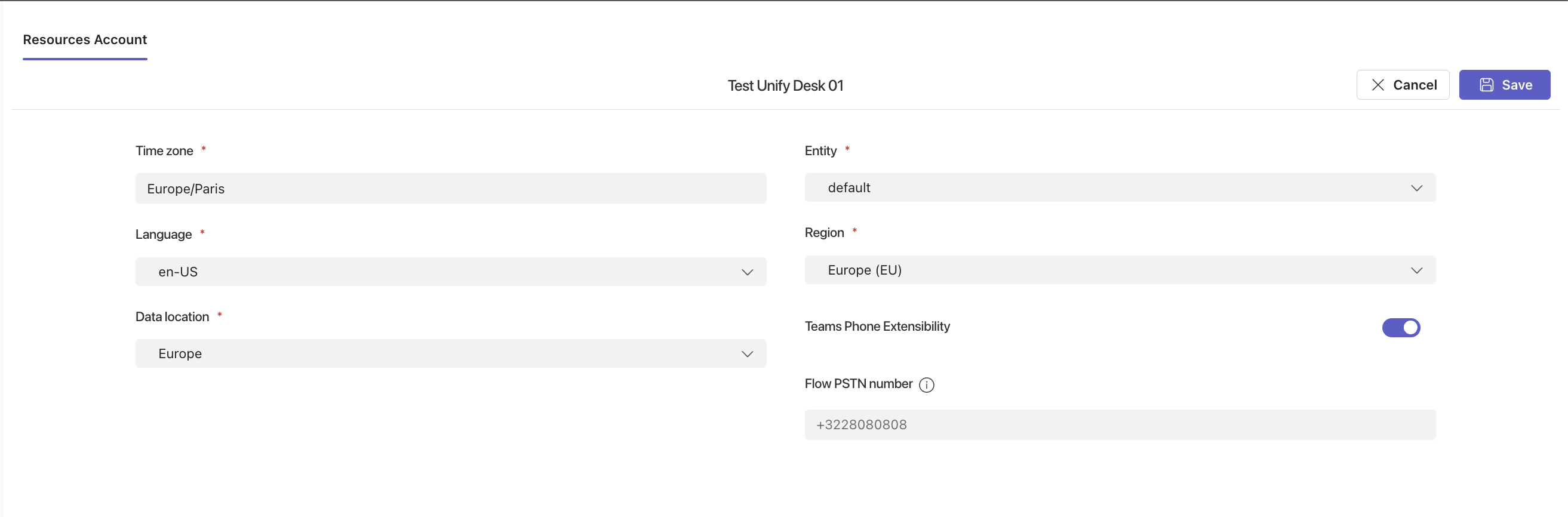
- In the Resources Account tab, fill in:
- Time zone — e.g.
Europe/Paris - Entity — select the entity that owns this flow
- Language — e.g.
en-US - Region — select your region (
Europe (EU),America (AMER)orAsia-Pacific (APAC)) - Data location — where call data is stored (e.g.
Europe) - Teams Phone Extensibility — leave disabled for Extend model
- Flow PSTN number — the phone number assigned to the resource account (e.g.
+3228080808)
- Time zone — e.g.
- In the Greeting tab, upload or generate a welcome message
- In the Routing tab, drag a Greeting node, then a Queue node that points to your queue, then a fallback Transfer or Disconnect node
- In the Open Hours tab, configure your business hours and out-of-hours fallback
- Click Save
Minimum viable flow
Greeting → Queue → (if no answer) Disconnect
You can add IVR, variables, workflows and surveys later. See Call Flows for the full reference.
Next → 7. Verify