1. Grant consent
Heedify supports Microsoft 365 application consent via the Global Settings module, integrated with Microsoft Entra ID (formerly Azure AD) — a Microsoft 365 tenant administrator must approve the application permissions required by each Heedify add-on before anyone in your organization can use Heedify.
Only a Microsoft 365 tenant administrator can complete this step.
Step 1: Admin Portal consent
Before accessing the Heedify Admin Portal, a tenant administrator must consent to its Microsoft Graph permissions.
-
Click the button below to open the Microsoft consent page:
- Sign in with your Microsoft 365 tenant administrator account.
- Review the permissions and click Accept.
- You are redirected to portal.heedify.io.
Step 2: Approve additional consents
- Sign in to portal.heedify.io with your Microsoft 365 tenant administrator account.
- Open Global Settings from the sidebar.
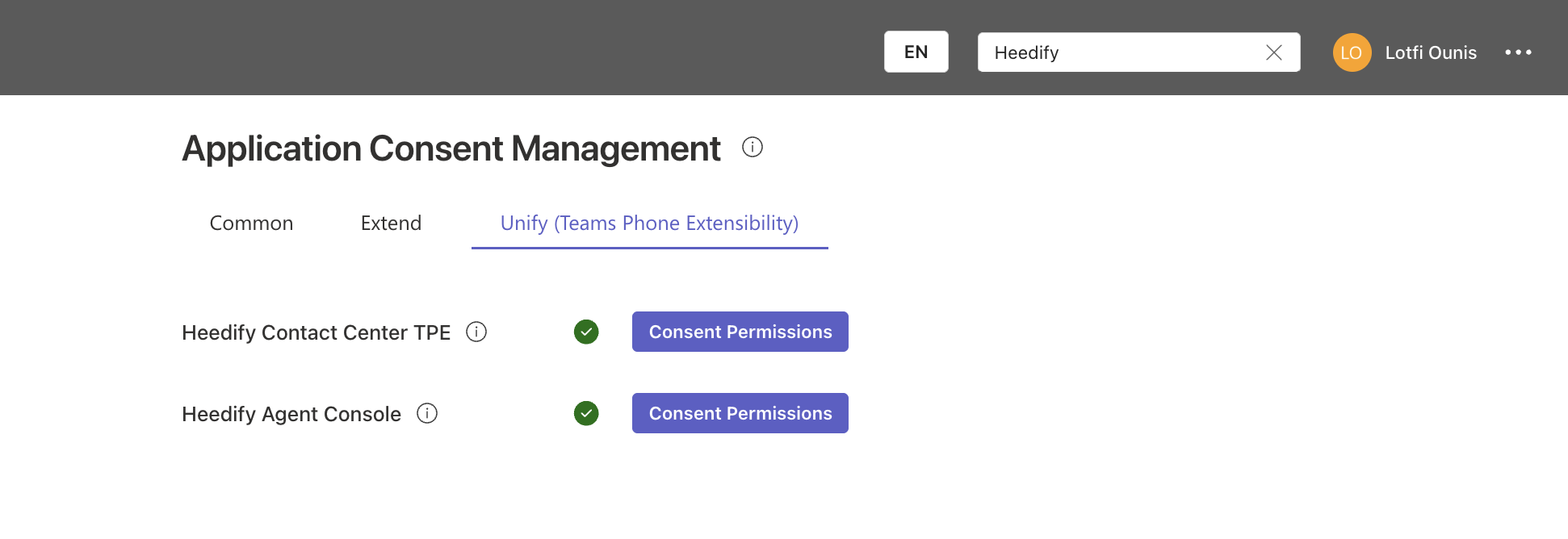
- The page is organized into three tabs: Common Applications, Extend Applications and Unify Applications.
- For each application listed across the three tabs, click Consent Permissions and approve in Microsoft.
- When the application shows a green checkmark, its consent is recorded.
Applications you are approving
| Tab | Application | Used for |
|---|---|---|
| Common Applications | Heedify Reports | Lagacy Historical analytics and dashboards |
| Common Applications | Heedify Presence | Managing Realtime agent presence in Microsoft Teams |
| Extend Applications | Heedify Call Center | Core Heedify call-center capability (Extend) |
| Extend Applications | Heedify Agent Console | Agent console application (Extend) |
| Unify Applications | Heedify Call Center TPE | Core Heedify call-center capability (Unify) |
| Unify Applications | Heedify Agent Console Europe | Agent console application (Unify) |
You only need to approve the applications you have licences for — your Heedify account manager confirms which apps apply.
Revoking consent
Consents are revoked from the Microsoft 365 admin center under Enterprise applications, not from the Heedify portal.
Next → 2. Create your entity